Troubleshooting
Before the Test day
This page provides quick solutions to issues encountered during the Selective High School (SHS) and Opportunity Class (OC) Placement Test process.
Important: Chief Invigilators should wait for communication from the JEM Team before engaging with any test centres.
Test device(s) are missing or have been damaged.
Liaise with Hardware Tech Support if you notice any device missing or damaged – as they may be able to replace the device.
Chief Invigilator contacts the JEM Team ([email protected]) as soon as possible if test devices are missing or have been damaged.
Take photos if necessary and do not allocate a missing or damaged device when checking-in students.
There are not enough devices available
Ensure that every child in the test room is registered for the correct session.
Chief Invigilator contacts the JEM Team ([email protected]) immediately, there may be spare devices allocated.
Invigilators cannot be present at the required time or at all?
All invigilators have committed to working on the test day. If an emergency arises, they should contact their JEM Manager immediately.
What if the Anaphylaxis Invigilator is unavailable and an anaphylactic incident occurs?
The JEM Team is responsible for ensuring at least one staff member is trained to respond to an anaphylactic incident. If a student has an Anaphylactic incident and the Anaphylaxis Invigilator is unavailable, another Invigilator should follow the student’s Action Plan for Anaphylaxis that should be provided in the student’s anaphylaxis kit. If the student does not have an anaphylaxis kit or the kit does not contain an action plan, the Invigilator should follow the generic action Action Plan for Anaphylaxis that is provided with the spare EpiPen.
What if Invigilators will not sign the ‘Declaration of confidentiality’ or the Child Protection Register?
Notify the JEM Team immediately.
An Invigilator informed their Chief Invigilator that they would not be able to work on the test day.
Advise them to contact the JEM Team ([email protected]) immediately.
Chief Invigilator contacts the JEM Team ([email protected]) for advice.
Replacements might not be provided due to strict WWCC clearances.
If there is no replacement, reallocate the number of students each Invigilator is responsible for and adjust roles as necessary.
What if RAs for disability are required for some students
The Chief Invigilator will be informed of any adjustments that require separate rooms or special equipment or access.
There is insufficient furniture is available
Janison will liaise with all test centres to ensure rooms are provided and have sufficient furniture set up. Liaise with the test centre contact if additional furniture is required.
Contact the JEM Team ([email protected]) immediately if there is still insufficient furniture.
There are insufficient clocks available
If there aren’t enough clocks in the test room, please liaise with the test centre contact.
Contact the JEM Team ([email protected]) as soon as possible if insufficient clocks can be found.
On the Test day, before students arrive
An Invigilator is absent from the test centre.
Contact the staff member immediately and inform your JEM Manager via WhatsApp. Replacements cannot be provided due to strict WWCC clearances. The JEM Team aims to add additional staff to sites to mitigate this risk.
Reallocate the number of students each Invigilator is responsible for and adjust roles as necessary.
The Anaphylaxis Invigilator did not arrive.
Inform your JEM Manager immediately via WhatsApp. If a student has an Anaphylactic incident, another Invigilator should follow the student’s Action Plan for Anaphylaxis that should be provided in the student’s anaphylaxis kit.
On the Test day, when students arrive
Parent/carers and carers do not leave when students enter the test room
Contact the staff member immediately and inform your JEM Manager via WhatsApp. Replacements cannot be provided due to strict WWCC clearances. The JEM Team aims to add additional staff to sites to mitigate this risk.
Reallocate the number of students each Invigilator is responsible for and adjust roles as necessary.
There are problems keeping order or moving students into the test centre.
Parent/carers/carers should say farewell to their children at the test room entrance. No parent/carer may enter the test room or remain outside the test room unless for an approved adjustment for disability. Display the poster about authorisation to enter the test centre at the entrance. Ask the parent/carers/carers to prove they are authorised by showing their written approval. If they cannot, clearly and firmly inform them that they must now leave the premises until the end of their child’s test. Refer the matter to the Chief Invigilator if a parent/carer/carer refuses to leave, note it in an Incident Report form and notify the JEM Team.
The media ask permission to enter the test room.
Unless authorised by Janison or the department, refuse the request. Media should not be at a test centre without authority. Refer the request to the JEM Team.
A student arrives without TAT, but authority has been confirmed by the JEM Team
Process the student through the normal check-in process once the student has received their TAT.
A student arrives to take the test with no apparent/carer authority to do so.
Ask them if they had been issued a TAT and if so, ask to see the TAT.
If student is listed but has no TAT, print off a copy of TAT for them and process to the check-in as usual.
If the student is not listed and has no TAT, the student cannot be admitted to the test unless the JEM team advise otherwise.
A student arrives to take the test with no apparent/carer authority to do so and the parent/carers/carers have left?
The student must not be left alone. Seat the student on a chair near the door, away from the testing area.
Report to the Chief Invigilator who will contact the JEM Team for further advice.
A parent/carer asks for adjustments for disability, but information about this was not provided to you.
Check with the JEM Team before granting any unauthorised adjustments.
Explain that the child should complete the test if possible and that the parent/carer can then submit an illness/misadventure request in their application dashboard. Make a note of the incident on an Incident Report form and mention that no RAs listed on their TAT.
A student does not want to use/accept their approved adjustment for disability.
Students with RAs should use the RAs granted. If a student does not want to, encourage them to use/accept their RAs. If the student still refuses, a detailed incident report must be submitted, and the JEM team advised immediately.
A student allocated to a separate room does not attend.
If there is only one student allocated to a separate room and he/she did not turn up, use the Separate Room Invigilator to assist with supervision in the main test room and ensure all test materials are returned to the Chief Invigilator.
An authorised student arrives at the wrong test centre.
Tell the parent/carer or carer that they have attended the wrong test centre and that you are not able to add the child to the test room. Advise them to attend their allocated test centre. They may also submit an illness or misadventure request in their application dashboard. Note the incident on an Incident Report form.
A student with anaphylaxis does not give you the anaphylaxis kit before the test.
Ask the student to check his/her bag. If the parent/carer is there, ask them to return and deliver the action plan for anaphylaxis and medication immediately. If the parent/carer has left, contact the JEM Team. You may need to use the general purpose EpiPen if there is an emergency in this case.
A student or member of staff has a medical emergency.
Call an ambulance on 000. If the emergency involves a student with a medical condition, one Invigilator should review their healthcare plan and follow any steps laid out, while another Invigilator calls an ambulance immediately.
Note: This can occur at any point throughout the day.
A student was absent on their allocated day but attends on another day.
If this is not picked up when viewing the TAT, a message will be displayed when scanning the students QR code.
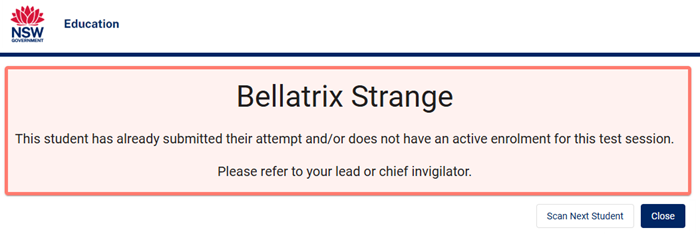
Report to the Chief Invigilator who will contact the JEM Team for further advice.
A student attends on their allocated day and completes all tests but then attempts to enter the Test Centre on a 2nd day.
If this is not picked up when viewing the TAT, a message will be displayed when scanning the students QR code.
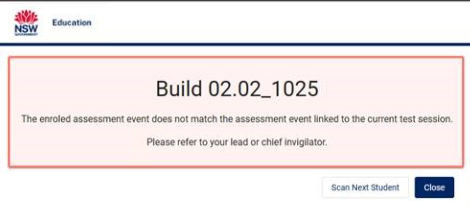
Report to the Chief Invigilator who will contact the JEM Team for further advice.
A student attempts to Check-in to an OC session when enrolled to SHS (or vice versa)
If this is not picked up when viewing the TAT, a message will be displayed when scanning the students QR code.

Report to the Chief Invigilator who will contact the JEM Team for further advice.
On the test day, during the test
A student arrives late after the test has started.
Seat the student in a place which will cause as little distraction to others as possible.
Check for any RAs the student may have and allocate them to a desk.
Ask an Invigilator to quickly and quietly:
- Check-in the student and allocate the student to a desk.
- Tell the student the test finishing time and explain that no additional time will be allowed.
- Note the arrival time and other details on an Incident Report form.
- Do not give the student any extra time for the test.
First Invigilator must manually submit the student’s attempt at the finishing time (Refer to Technical Invigilator Guide – 4.7 Invigilator Controls).
A student asks for a question to be explained.
Tell the student that you cannot help with answering test questions and direct them to re-read the question and choose the best answer. Do NOT try to interpret or explain questions.
A student arrives late after the test has completed.
Report to the Chief Invigilator who will contact the JEM Team for further advice. Janison admin will need to action the students attempts before they are scanned into the Session.
Once approved, standard check-in process will apply.
A large number of students query a question, saying a question has more than one answer/the correct answer is not one of the options.
Direct the students to choose the best answer. They can flag questions and revise them later if they’re not sure of their answer and have time left at the end of the test section.
Assure them that if the question is not correct this will be taken into account when the test is marked. Note it on an Incident Report form.
A student asks for note paper at their arrival.
Students are provided with working out paper at the beginning of the test so they can use it to do their working out. No additional paper is allowed. All working out papers must be collected at the end of the test, before they leave the test room.
A student appears not to be making a serious attempt.
Quietly ask whether they are making a serious effort. If ‘No’, ask them to explain. A report of the explanation should be made on an Incident Report form.
A student completes the test before the allotted time.
Advise the student to check their answers. Students are not to leave early but must sit quietly until the end of the test.
Students cannot submit their test before the finish time.
A parent/carer asks for a copy of the test content.
Explain that for security reasons the test content is not to be provided to anyone.
An Invigilator asks for a copy of the test content.
Invigilators are NOT to read test content and generally do not require them for the execution of their duties. If Invigilators feel that they need the test content to answer a specific question they should refer the matter to the Chief Invigilator.
A student damages a test device.
The Invigilator will need to pause the student’s test using the Test Session Administration Dashboard.
If the damaged device cannot be used, move the student to the next available device. The Invigilator will need to allow access from the Test Session Administration Dashboard once the student has re-entered their Student Access code.
If there are no empty desks, alert the Chief Invigilator who will contact either Tech Support person or the JEM Team.
If there is no spare device, the student cannot continue the test for that session. The JEM Team must be notified, and parent/carer/s contacted to collect their child.
In all cases an incident report must be completed, and the exact issue and time must be documented.
A student asks to leave the room to go to the toilet.
Permission is to be granted. The bathroom invigilator must accompany the student to the toilet door. No extra time is to be allowed. Note the approximate time missed on an Incident Report form if longer than a few minutes or repeatedly.
A student asks to leave the test room because of illness.
The student should be escorted out of the room. No extra time is to be allowed. Note the approximate time missed on an Incident Report form. Tell the student that the parent/carer can use the illness/misadventure procedure in their application dashboard. When the parent/carer arrives, advise them about the illness/misadventure process and that it requires a medical certificate for test day.
- The First Invigilator must manually submit the student’s attempt at the finishing time (Refer to Technical Invigilator Guide – 4.7 Invigilator Controls).
- Do NOT pause the test on the student’s device.
A student asks to go home because of illness.
First encourage the student to continue if possible. If unable to continue, escort the student out of the room. The Invigilator should:
- move to a quiet space/corner in the test centre.
- contact the JEM Team to coordinate parent/carer pick-up.
- advise the student and the parent/carers/carers to use the illness/misadventure procedure in their application dashboard and that they need a medical certificate covering the test day.
- record details on an Incident Report form.
- The First Invigilator must manually submit the student’s attempt at the finishing time (Refer to Technical Invigilator Guide – 4.7 Invigilator Controls).
- Do NOT pause the test on the student’s device.
A student complains of distractions caused by Invigilators.
Make sure the distraction ceases immediately. If the problem has persisted for a while or affects more than one student, record it on an Incident Report form.
A student has a complaint about any aspect of the test.
Tell the student to answer the questions as best they can. DO NOT offer opinions about the test contents. Note the complaint on an Incident Report form and say their parent/carer may contact SEU about their concerns after the test.
A student experiences an anaphylactic episode.
If a student experiences an anaphylactic reaction, then an ambulance would be called, and you wouldn’t be delaying treatment for the sake of minimising disruption. Perhaps the advice is just to respond calmly, follow the students plan or the general plan, ensure someone rings an ambulance. A student has to be treated seated or lying down right where they are – you wouldn’t go moving them around. Someone has to stay with the child as well as the first shot of adrenalin may not be effective and a second needs to be administered etc.
A student misbehaves or creates a disturbance.
Ask the student to stop and try to calm the situation. If the student persists, try to handle the situation with as little disruption to other students as possible. If necessary, direct the student to another seat, or seek assistance from another Invigilator. Write all details on an Incident Report form.
If the student continues to disrupt, try to remove the student from the test room and keep them under supervision outside. Assign an Invigilator to contact the JEM Team for further assistance.
If the student will not move, contact the JEM Team for the next steps. Record the time lost accurately so the remaining time can be allowed when students can resume the test. Do not leave the test room unattended; secure the test room where safely possible. Write all the details on an Incident Report form.
Students who have finished their test early disrupt other students.
Tell the students that their behaviour is not acceptable. If they persist, ask the students to leave the test room with an Invigilator immediately. Make sure they are supervised. Student should not be left alone in any location or room that cannot be seen by another attending Invigilator or Chief Invigilator.
Contact the JEM Team for assistance if the students will not listen. Record details on an Incident Report form, especially if the rest of the students were disrupted.
A student is detected behaving in a manner which may be considered malpractice, such as using prohibited items such as dictionaries, calculators, cameras or rulers or adding answers after the end of the test or staring at the answer sheet of another student.
Direct the student to stop the behaviour and follow instructions. Tell them the incident will be reported.
Move the student if the activity continues or instruct them to disable devices and place prohibited items in their bag. Confiscate items only if they pose a danger to others.
Avoid disturbing other students. If other students are disturbed, complete an Incident Report.
If the student persists after a warning, report the details of the incident on an Incident Report form.
There is a noise or a physical disturbance which causes excessive distraction e.g., building works, or glass shatters.
Encourage the students to ignore the disturbance. Send an Invigilator outside to request that the workers or people involved co-operate by stopping the activity (or move it to another location) until the end of the test. Note the nature and duration and severity of the disturbance on an Incident Report form.
A student becomes violent.
Take steps to ensure all students and Invigilators are safe. At least two people should be in the room calmly supervising from a safe distance. Invigilators should use an exit that is furthest from the incident/violent child to evacuate other students to the safe area. In extreme cases you may need to stop the test. Evacuating students to the safe area is the most important.
Contact the JEM Team as soon as possible to explain the situation and make regular updates. We can ask SEU to contact parent/carers/carers.
Record accurately the time lost and allow this time when students resume the test. During evacuation procedures, attempt to maintain the security of the test materials, where safely possible.
Write all details on an Incident Report form.
There is a fire, a bomb scare, or some other disturbance which interrupts the test centre.
Scenario 1: Fire Emergency
- The test centre contact informs the Chief Invigilator, and evacuation follows the fire procedures.
- If the contact is unavailable, follow the test centre’s evacuation plans.
- Contact the JEM Team as soon as possible to explain the situation and make regular updates. We can ask SEU to contact parent/carers/carers and we will advise what to tell parent/carers/carers when they arrive.
- Maintain test security during evacuation if possible.
- Complete an Incident Report and record lost time for resumption.
Scenario 2: Bomb Scare
- The test centre contact informs the Chief Invigilator, and evacuation follows bomb threat procedures.
- If unavailable, follow the test centre’s emergency plans.
- Contact the JEM Team as soon as possible to explain the situation and make regular updates. We can ask SEU to contact parent/carers/carers and we will advise what to tell parent/carers/carers when they arrive.
- Ensure test security during evacuation where safe.
- File an Incident Report and note lost time for resumption.
Scenario 3: Other Disturbance
- The test centre contact informs the Chief Invigilator, and evacuation follows the appropriate procedures.
- If unavailable, follow the test centre’s disturbance plans.
- Contact the JEM Team as soon as possible to explain the situation and make regular updates. We can ask SEU to contact parent/carers/carers and we will advise what to tell parent/carers/carers when they arrive.
- Maintain test security if possible during evacuation.
- Complete an Incident Report and record lost time.
Hardware issues
Laptop not charging (on battery power only).
Make sure the laptop is plugged into a working power outlet/power board and that the charger is connected properly. Verify that the outlet is working by testing it with other devices connected to the same outlet/power board. Look for any lights indicating the laptop is charging.
Professional help: If none of the above steps work, contact hardware tech support.
Screen is not working.
If the screen is blank, try adjusting the brightness or pressing the power button to wake it up. Check the battery is not flat and the laptop has power. If needed, press and hold the power button to reboot the laptop.
Laptop is frozen or unresponsive.
The Invigilator will need to pause the student’s test using the Test Session Administration Dashboard.
A quick restart can fix small issues. Hold down the power button until it turns off, then turn it back on again.
Professional help: If the above step doesn’t work, contact hardware tech support.
No Wi-Fi Connection.
C
Check Airplane Mode: Sometimes, accidentally enabling Airplane Mode can disable the wireless connection. Look for an airplane icon in the system tray or settings and make sure it’s turned off.
Toggle Wi-Fi On/Off: Check if Wi-Fi is enabled on the laptop. Look for a physical switch on the side or front of the laptop or use the function keys (often F2 or a key with a Wi-Fi icon) to toggle Wi-Fi on and off.
Restart the Laptop: Sometimes, a simple restart can resolve Wi-Fi issues. Restart the laptop and see if the wireless connection is restored.
Professional help: If none of the above steps work, contact hardware tech support.
A student’s device/peripheral (mouse) is not responding.
Check the peripheral (mouse) is correctly plugged into the USB outlet. Remove and plug in again.
Restart the laptop if required.
Contact the hardware tech support at the test centre if peripheral is still not responding. Ask the student to use the track pad while this is getting fixed.
A laptop device unexpectedly shuts down/won’t turn on.
Check the power supply: ensure the laptop is plugged in and the charger is working. Look for potential signs of damage to the power cord or connector.
Overheating: check if the laptop is overheating. Ensure vents are not blocked and vans are working. Used compressed air to clean the dust from the vents.
Professional help: If none of the above steps work, contact hardware tech support.
They keyboard is not working.
Restart laptop
Ensure the keypad/track pad is enabled in settings
Professional help: If none of the above steps work, contact hardware tech support.
Software issues
Janison Replay fails to launch
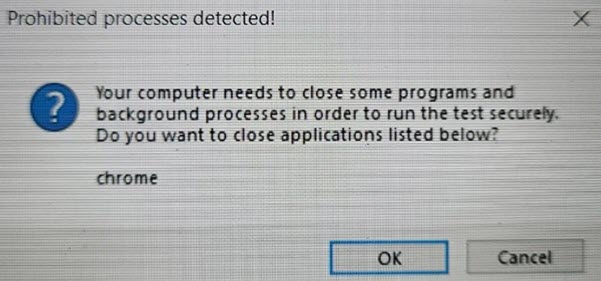
During the launch of Janison Replay, the app will check for any prohibited applications and attempt to close them. Please ensure there isn’t a pop-up message displayed prompting you to close these applications. If you do see the pop up please click “OK” to close.
After launching Janison Replay, during the loading the screen shows a red error banner, or the message: Failed to load Service Worked.

It is possible the device has lost its connection to the Wi-Fi and cannot download the resources on loading Janison Replay.
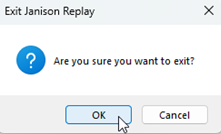
Please Exit Janison Replay using the Exit button in the bottom right corner.
Confirm the device is online, and restart Janison Replay.
Janison Replay has frozen or is stuck on a white screen with no Exit Janison Replay button displayed.
The Invigilator can use an administrator password to force a Safe Exit of Janison Replay.
On the device, use the keyboard to press Ctrl+Q. This will display a pop-up box to enter in a password.
Enter: SafeExit# and select Ok.
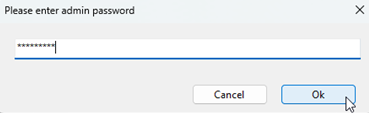
You will then be able to follow the prompts to Exit Janison Replay
After entering Student Access Code Replay displays the message: This device is not prepared for taking the test offline.
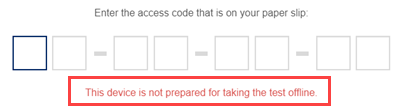
This means that the device does not have a Wi-Fi connection at the start of the student’s test.
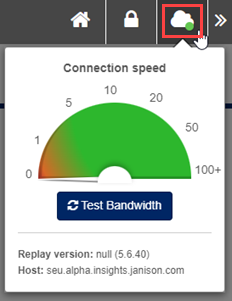
The Invigilator can confirm by checking the Cloud Icon connection status in the top right of Replay. It will display Red for an Offline connection.
Select the Home Icon to return to the Welcome Page.

Use the Exit Janison Replay button to exit, confirm the Wi-Fi connection and reopen Janison Replay.
If online, the Cloud Icon will display Green. There is a tool available for testing bandwidth if required.
The Home Icon displays a yellow notification containing a number.
This means there has been an attempt submitted offline and requires manual reconcile.

Please refer below to the steps on Reconcile an Offline Attempt.
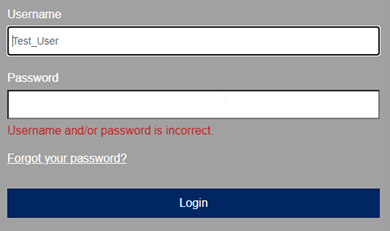
Invigilator is unable to login to the Invigilator Portal.
Ensure the Invigilator is using the correct URL to access the Invigilator Portal: https://se.insights.janisoncloud.com/
Ensure the Invigilator is entering in the correct Username and Password they were provided with.
Passwords are case sensitive.
If issues persist, alert the Chief Invigilator, who can contact the Software Support Tech, or helpline.
Invigilator unable to Create a Test Session.
After logging in if an Invigilator does not have the button to create a New Test Session, please ensure they are viewing the correct dashboard. The Delivery Dashboard is displayed by default after logging into the platform.
There will be a button on the right-hand side to Create New Test Session.

![]()
If this button is not visible, please contact the Chief Invigilator who can contact the Janison Software Support Tech, or Helpline.
Student reports their Reasonable Adjustment (RA) has not been applied to their Test. I.e. Extra Time.
If a student reports that their Reasonable Adjustment, such as Extra Time has not been applied to their test, please contact the Chief Invigilator as soon as possible.
The Chief Invigilator will need to get in touch with the Janison Software Support.
On the test day, after the test
An Invigilator asks for a copy of the test content.
Invigilators are NOT to read test content and generally do not require them for the execution of their duties. If Invigilators feel that they need the test content to answer a specific question they should refer the matter to the Chief Invigilator.
A parent/carer asks for a copy of the test content.
Explain that for security reasons the test content is not to be provided to anyone.