Pre-Test Duties and Preparation
Rename Replay Devices During the Site Visit
The Chief Invigilator, Assistant Chief Invigilator (if applicable), and Lead Invigilator are responsible for renaming devices during the site visit.
Device Name
When the device is first set up, its Device Name will appear on the Welcome page in the default format from the installation process.
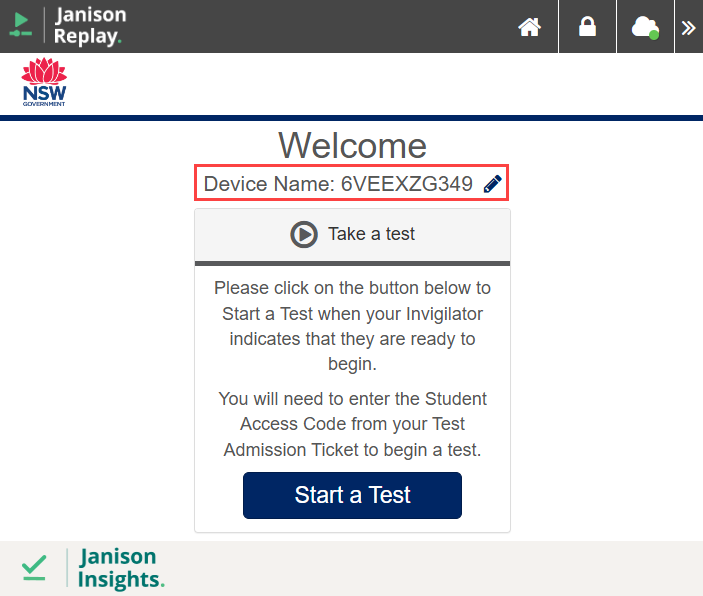
The device must be renamed to map student locations accurately to their assigned sections and seat numbers. Proper mapping is critical for maintaining accurate records, ensuring reliable scoring, and addressing any instances of malpractice effectively.
Steps to Rename a Device
Watch the video to learn how to rename a device, or follow the step-by-step instructions provided in the text below.
Step 1: Access Edit Mode
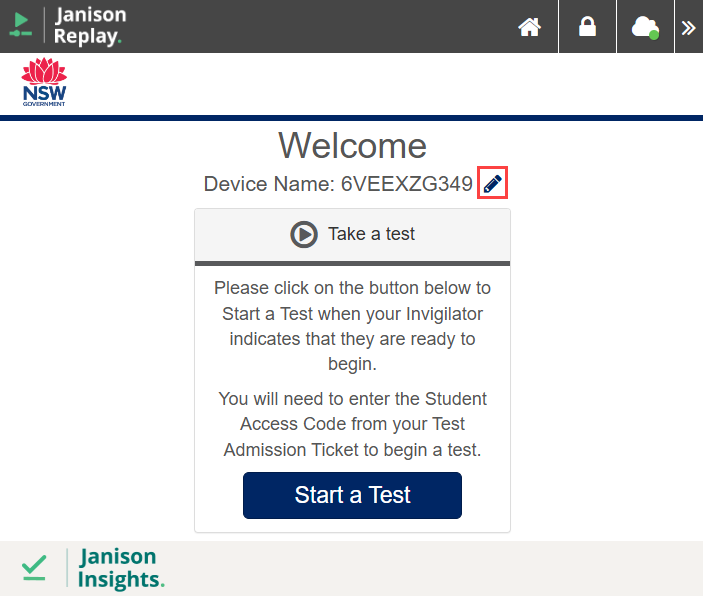
- On the Welcome Page, select the pencil icon next to the default device name, OR
- Use the keyboard shortcut Alt + Q to unlock the device and enter Edit Mode.
Step 2: Unlock Device
On the Unlock Device modal, enter the Test Centre PIN located on the Technical Information Sheet (TIS) provided in the Chief Despatch.
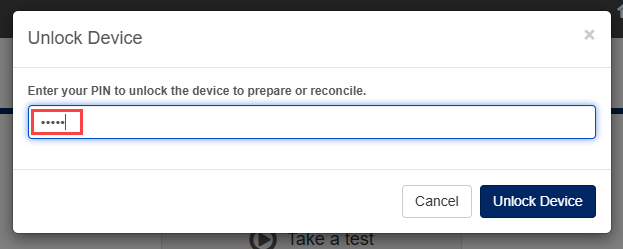
As you finish entering the Test Centre PIN, the device will automatically unlock.
Step 3: Edit Device Name
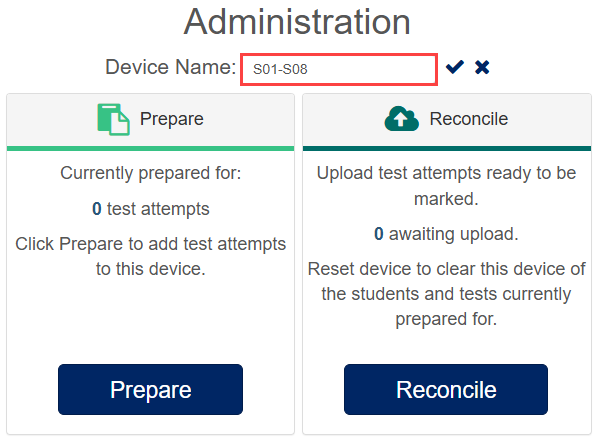
Once unlocked, the Administration page will display, and the Device Name field will become an editable text box.
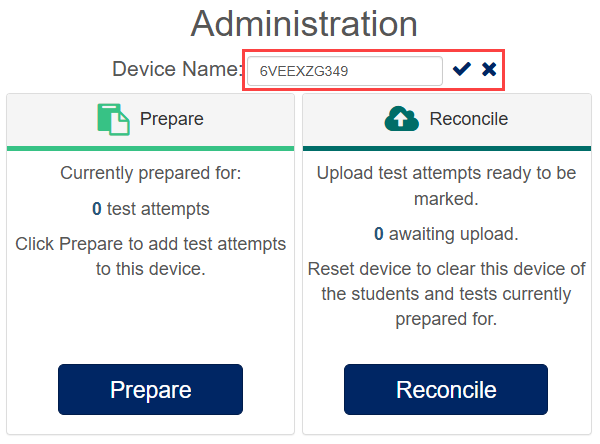
The text box is automatically selected, allowing you to begin typing without needing to click.
Match the device name to the section and seat number affixed to the desk.
Enter the name in the format: S##-S## (e.g., S01-S08 for Section 01, Seat 08).
Step 4: Save the New Name
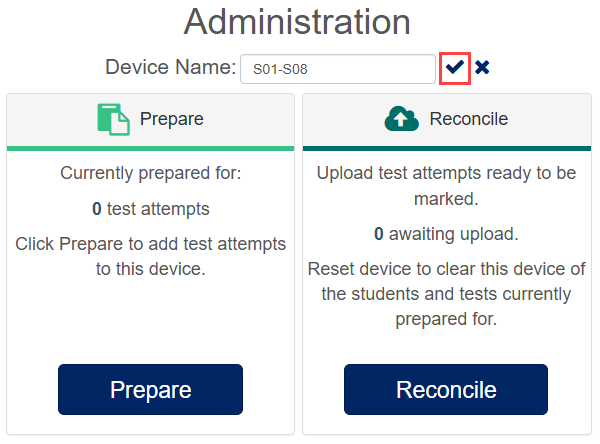
Select the tick icon OR press Alt + Enter to save the updated device name.
Replay will automatically lock the device and return to the Welcome page, displaying the updated Device Name.
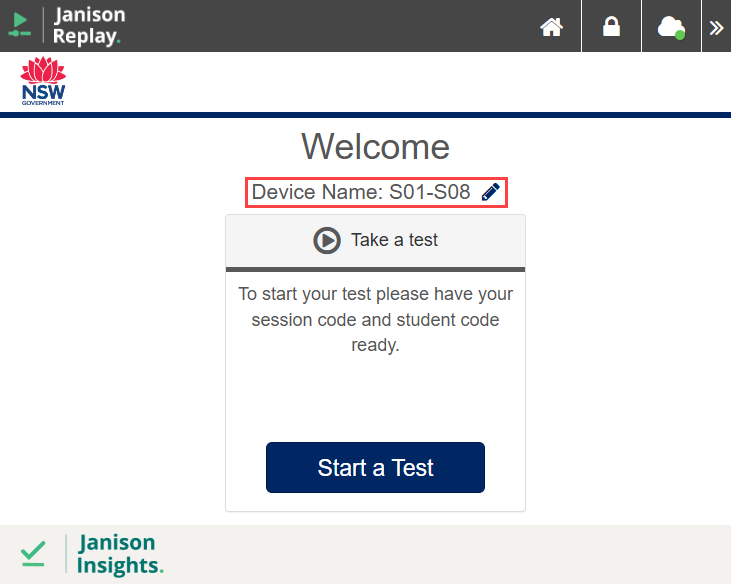
The device is now ready for students to complete their tests.