Invigilator Portal How to
How to find your Test Centre PIN
The Test Centre PIN will be printed on the Test Centre Technical Details Sheet along with the Test Centre Wi-Fi details.
This PIN is required for the renaming of Replay, exiting a test in progress and when performing a manual reconciliation.
The PIN is unique for each Test Centre.
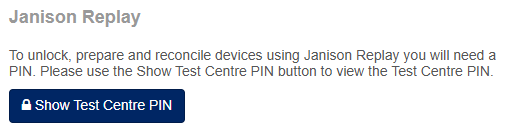
If needed, the First Invigilator can also view their PIN within the Invigilator Portal. To do this, view the Delivery Dashboard (displayed by default when logging in). Clicking the Home button in the menu will also take you to this Dashboard.
Scroll down to bottom of the Dashboard page, there is a section labelled Janison Replay.
Click on the Show Test Centre PIN button to display the Test Centre PIN.
Move a Student to another Section (Session)
If it is required, a student can be moved between sections (which also means moving between a test session). If the student is yet to begin a test, please follow the standard Check-In process and this will automatically move the student to the new section.
However, if the student has already started an attempt please use the Pause Student option from the Test Session Administration Dashboard. Pause the specific student required to move, then move them to the new section.
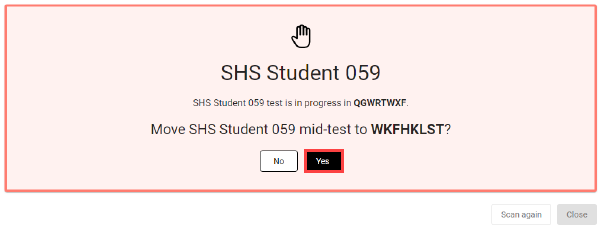
Follow the Check-In process again to scan them into the new section (session). This time a different message will be displayed. The student will use the same Test Admission Ticket and Student Access Code on the new computer as the information is tied to the student. If there are any issues, please contact a lead or chief Invigilator.
Select Yes to move this student
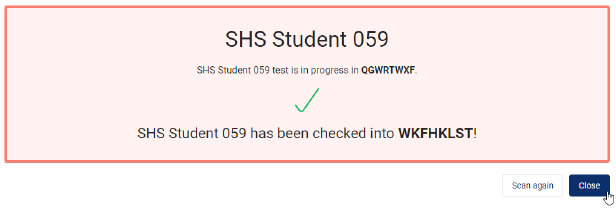
Once confirmed, a message will be displayed to indicate the student has been moved.
On the student’s device, a message will be displayed that their attempt has been Postponed.
The student will be required to select Ok, and then return to the Student Access Code page.
On the new device, in the new section. The student will need to enter their Student Access Code again to enter the Test. The Invigilator will need to allow entry for the student using the Test Session Administration Dashboard.
Reconcile Offline Student Attempt
In the event a student device was offline at the time the student submitted their attempt the Invigilator will need to manually reconcile the attempt before the student can continue to their next test.
NOTE: This step requires the Test Centre PIN.
Invigilators can confirm an attempt needs to be reconciled with two methods. The most common method is after each Test has completed, to perform a quick visual check on each device.
The other method is to view the Test Session Administration page once all students have submitted their attempts, if an attempt has been submitted offline this will still display as Started status and the connection method will indicate Offline.
If there is a yellow notification with a number displayed on the Home Icon, then a manual reconcile is required.
Select the Padlock icon to unlock the device and access the Administration tools.

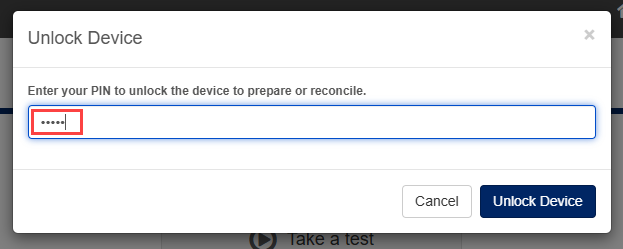
A pop-up will appear prompting you to enter the Test Centre PIN.
As you finish entering the Test Centre PIN, the device will automatically unlock.
The Administration tools are displayed, there are two options; Prepare and Reconcile.
The Reconcile section will indicate the number of attempts requiring manual reconcile. When ready select the Reconcile button.
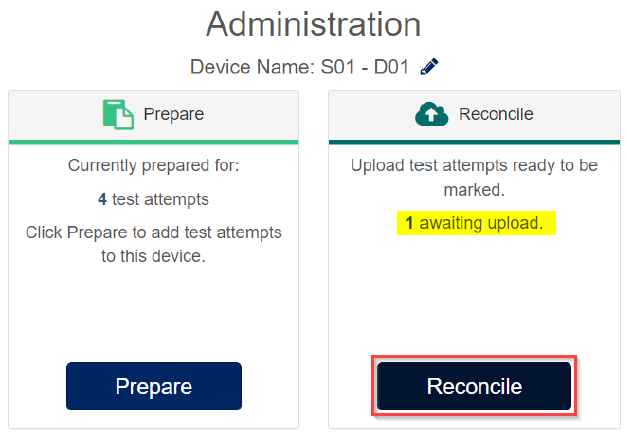
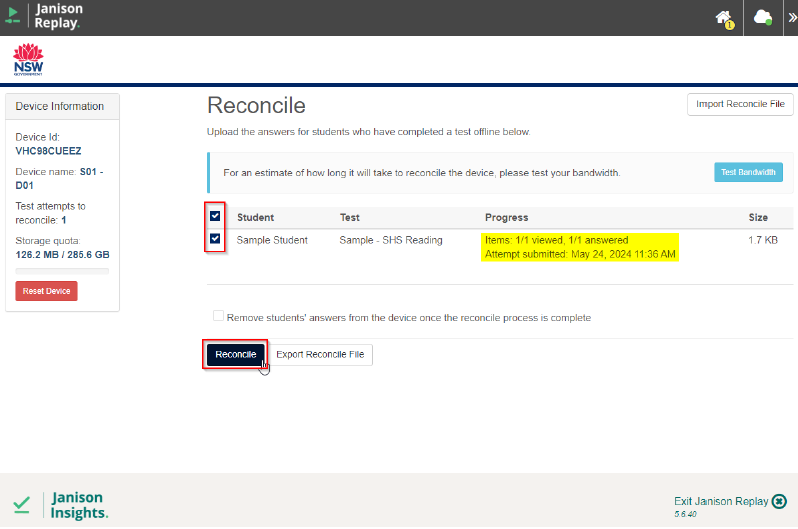
The Reconcile page is displayed and will list the attempts requiring manual reconcile. The Invigilator can view this list and ensure the details are as expected for the student who has complete the attempt.
By default, any attempts to reconcile will be pre-selected with a checkbox.
Select the Reconcile button.
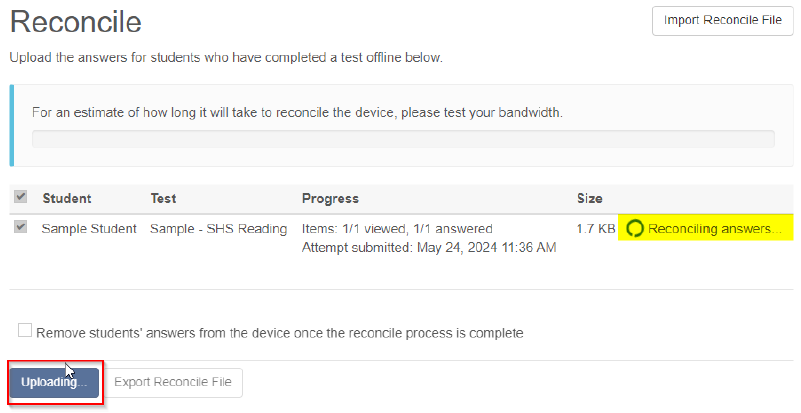
The Reconcile process now begins and will indicate Reconciling answers in progress.
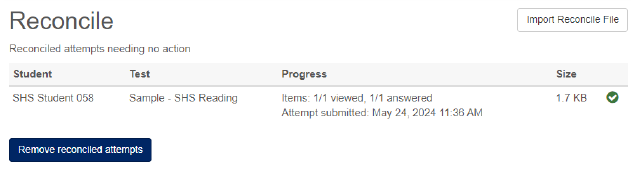
Once the reconcile is complete the list will change to display Reconciled attempts needing no action and a green tick will be shown next to the attempt. The manual reconcile is now complete.
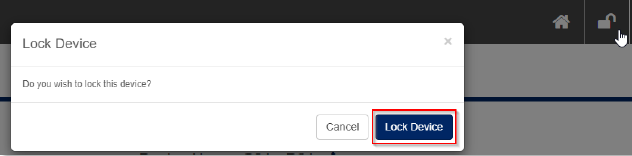
Use the Home Icon to navigate back to the administration tools, then select the Padlock icon again to Lock the Device.
Exit a Student Test in Progress
If a student is required to exit a test in progress, the Invigilator will require the Test Centre PIN to do so.
On the student’s device, select the Home Icon.
A pop-up will display: Leave test.
Enter in the Test Centre PIN and select Leave test.
