Report an Incident
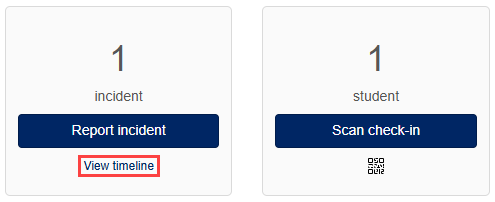
Select Report incident.

the Create incident report screen displays.
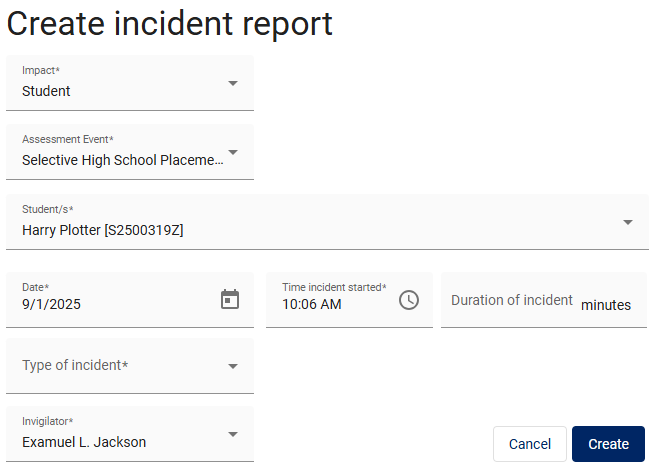
Let’s examine the fields in detail.
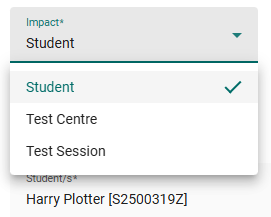
Impact refers to the students who will be included in the report. The options are Student, Test Centre or Test Session.
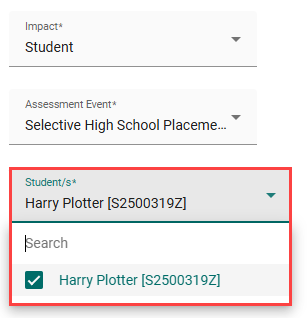
Selecting Student will provide an additional dropdown to select the Student or Students (Multiple can be selected).
The timing fields include the date, time and duration of the incident.

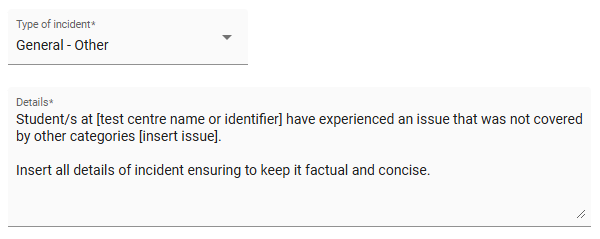
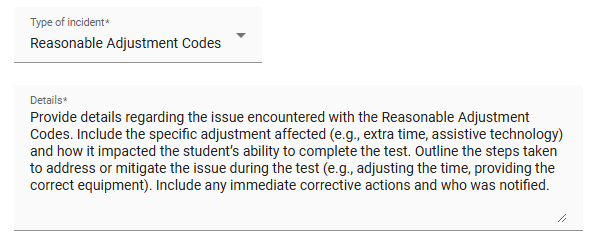
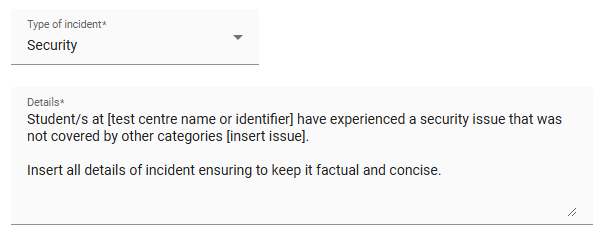
The Type of incident dropdown provides a selection of incident types to choose from. Available options are Environmental, General – Other, Illness, Reasonable Adjustment Codes, Security, Technical, and Test Content.
The options and details displayed vary based on your selection. Scroll through the slides below to see how they appear.




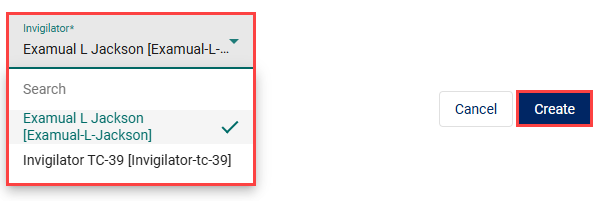
Invigilator
Select the Invigilator from the dropdown.
Select the Create button to create the report.
The report displays giving you the opportunity to review the information.
Options exist to delete, edit or return to the dashboard as highlighted below.
A. Delete the report
B. Update the report
C. Return to the dashboard.

View Incidents
Incidents will show related to your specific test session.
select View timeline on the Incidents tile.
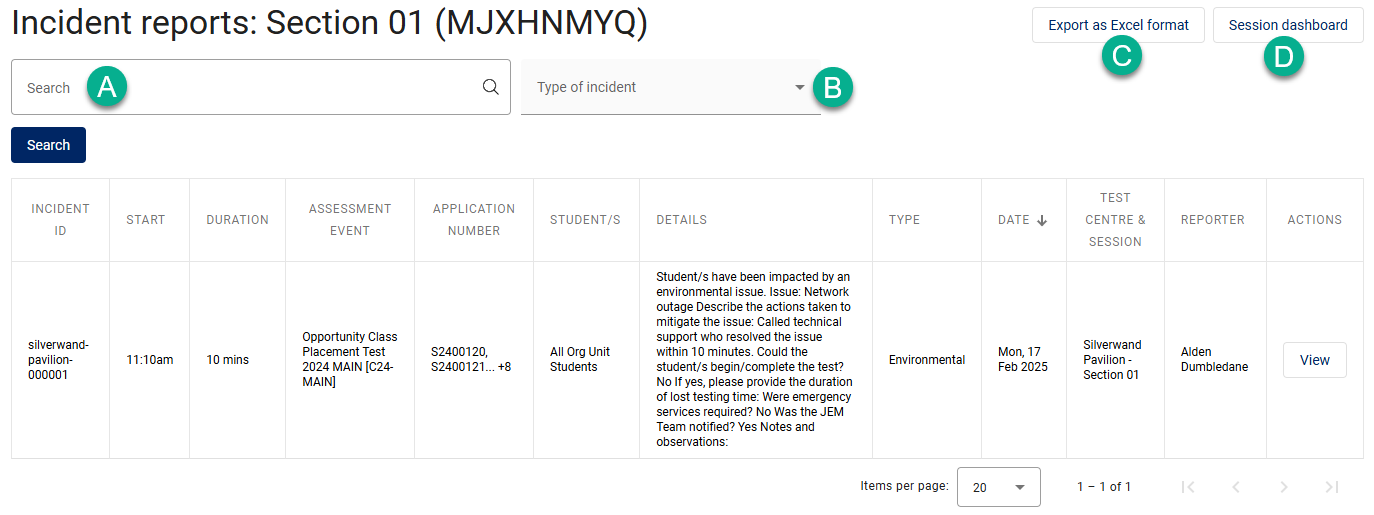
A list of incidents associated with the specific test session is displayed. The page includes features labelled A to D:
A. Search reports
B. Filter reports by Type of Incident.
C. Export the report to Excel.
D. Return to the Session dashboard.